
FastPass is phishing-resistant by design — device-bound, cryptographically verified, and hardware-backed. It's the strongest authenticator Okta ships. But it's one part of a broader device security architecture, and most teams implement pieces of it without fully connecting how they fit together.
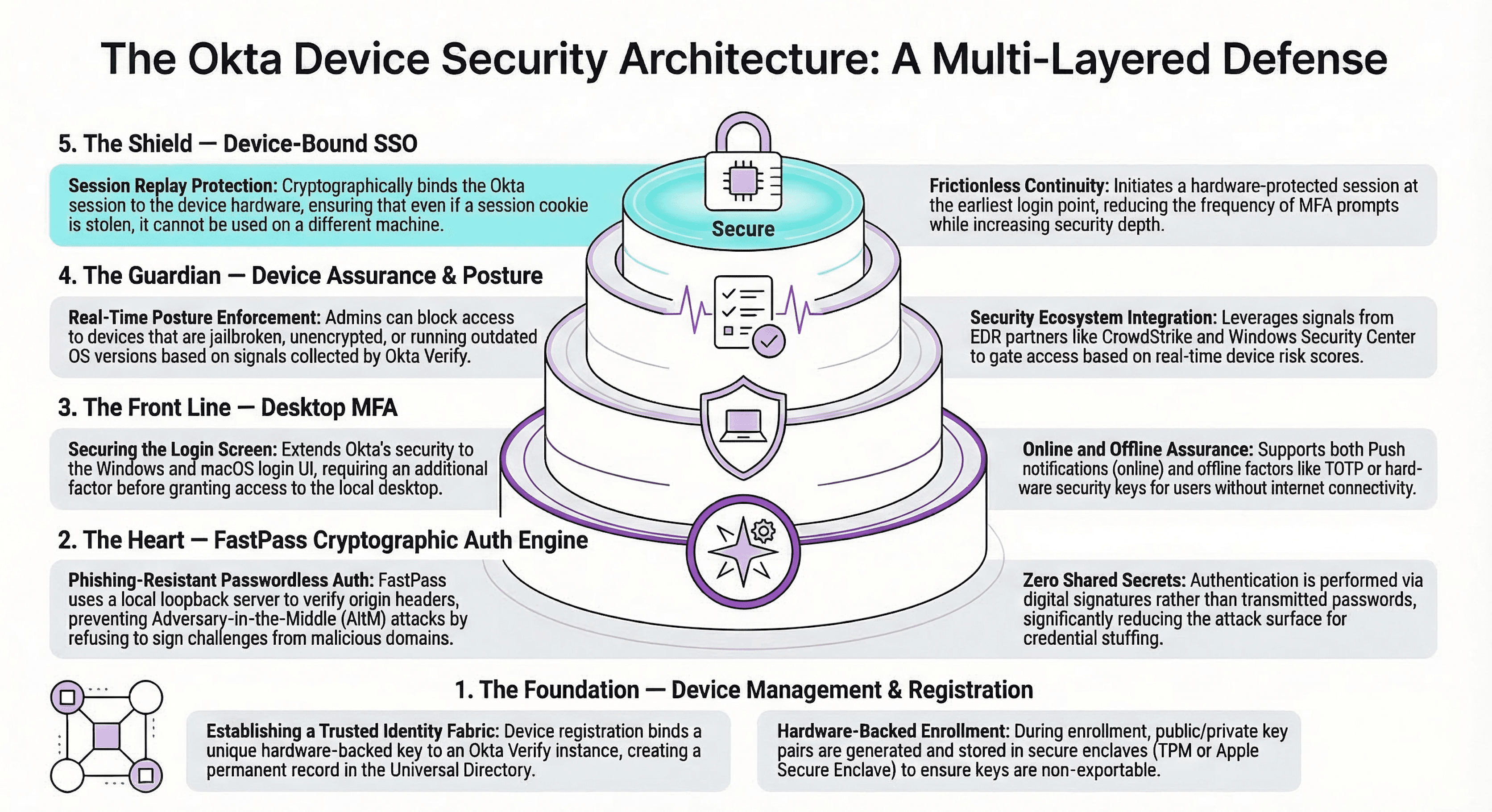
That architecture has four components: Okta Device Management, Okta FastPass, Desktop MFA, and Device Assurance Policies. FastPass is the engine at the center. Device Management establishes the device identity FastPass runs on. Desktop MFA extends FastPass down to the device login screen. Device Assurance Policies enforce posture checks alongside that authentication. And Device-Bound SSO carries the hardware-backed session from Desktop MFA through to every app a user touches during the day.
Okta FastPass: The Engine at the Center
FastPass is what makes Okta's device security story different, so I want to explain it properly before getting into the rest of the architecture — because everything else builds on it.
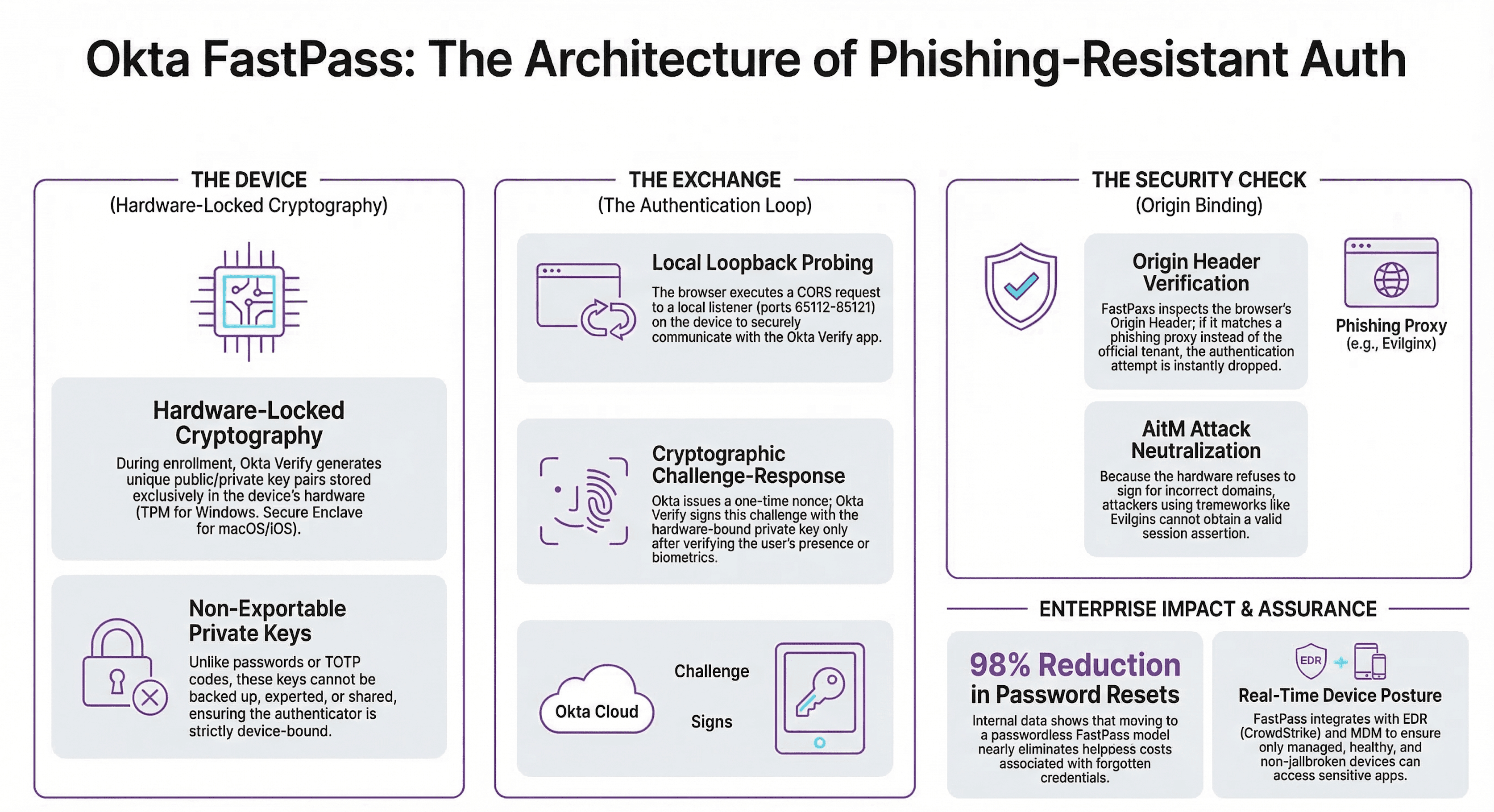
FastPass is a phishing-resistant, passwordless authenticator built into Okta Verify. When a user enrolls in FastPass, Okta Verify generates a proof-of-possession key pair — a private key that is generated on the device and never leaves it, and a public key that Okta holds. This happens at enrollment and uses the device's hardware security module: the Trusted Platform Module (TPM) on Windows, the Secure Enclave on macOS and iOS.
When a user authenticates with FastPass, Okta issues a cryptographic challenge. Okta Verify collects device signals, signs the response with the private key, and sends it back. Okta validates the signature against the public key. If anything in that chain is wrong — wrong origin, wrong device, intercepted request — the verification fails.
This is what phishing-resistant means in practice. There's no OTP to intercept, no push to hijack, no password to steal. The authentication is bound to the physical device and verified cryptographically. A man-in-the-middle attack that would trivially defeat push MFA or TOTP cannot defeat FastPass, because the private key never travels across the network.
It's also invisible to users when it's working correctly. FastPass authentication can be fully silent — users open a browser, navigate to an Okta-protected app, and they're in. No prompt. No code. That's the user experience Okta has engineered alongside the security model.
 Click to zoom
Okta Device Management: The Foundation
FastPass is powerful, but it needs a registered device identity to work with. That's what Okta Device Management provides.
When a user installs Okta Verify and enrolls on a device, Okta creates a device record in your tenant. That record tracks the device platform, Okta Verify version, management state, and the Okta identity it's associated with.
I think of two tiers here:
A registered device has Okta Verify installed and the user has enrolled. Okta knows it exists, and FastPass can function on it.
A managed device is registered AND has an active MDM connection — Microsoft Intune, Jamf Pro, or another supported MDM — that Okta can query for posture signals. This is the tier that unlocks the full Device Assurance signal set.
Okta doesn't replace your MDM and isn't trying to. Your MDM still owns configuration management, software deployment, certificate provisioning, and patching. What Okta does is consume the signals your MDM produces and use them as access control conditions. Don't think of Okta Device Management as a competing platform to Intune or Jamf — it's the identity layer that sits on top of them.
Every registered device appears in Admin Console > Directory > Devices. Platform, OS version, MDM management status, last activity, the user assignment. I treat this inventory as a live view of your device identity surface — anything you don't recognize, or that hasn't been active in 90+ days, is worth reviewing.
Device Assurance Policies: Enforcing Posture Conditions
Device Assurance Policies are how you translate your security baseline into conditions Okta enforces at sign-on. A device that doesn't meet your policy can't satisfy the access rule — regardless of what authenticators the user has. This is the posture layer that runs alongside FastPass authentication.
On Windows, you can enforce OS version (static build or dynamic — Okta updates it automatically as Microsoft ships new releases), BitLocker encryption, Windows Hello enrollment, TPM presence, and Okta-joined status. If your org runs CrowdStrike Falcon, you can wire the ZTA score directly into the sign-on rule — a device that drops below your threshold gets blocked automatically, no manual review required. That turns your EDR investment into a real-time access control signal.
On macOS, the equivalent checks apply — OS version, hardware-backed FileVault, Secure Enclave presence, Touch ID, lock screen requirements — with Chrome Device Trust adding browser-level signals like Safe Browsing status and key trust level.
Mobile (iOS and Android) covers OS version, screen lock, jailbreak and root detection, and on Android, Google Play Protect with configurable risk thresholds. For BYOD Android fleets, combining lock screen complexity, device integrity level, and Play Protect gives a meaningful baseline without requiring full MDM enrollment on personal devices.
Creating and Wiring Policies
Navigate to Security > Device Assurance Policies, create a policy for the target platform, configure your checks, and save. The part that catches most teams out is that a Device Assurance Policy does nothing until it's referenced inside an app sign-on policy rule.
In any application's Sign On tab, when you create or edit a rule, the Device section is where you attach an assurance policy as a condition. I build separate policies for different access tiers — a standard corporate app requires OS version and disk encryption; privileged admin access additionally requires CrowdStrike ZTA score, TPM, and Okta-joined status. Two policies, two sign-on rules, different levels of enforcement applied precisely where they're needed.
Desktop MFA: Bringing FastPass to the Device Login Screen
This is the piece that completes the picture. FastPass protects application access — it's the phishing-resistant authenticator users invoke when they open a browser and navigate to an Okta-protected resource. Desktop MFA takes that same authentication model and extends it to the device login screen itself.
The result is that the login screen on a Windows or macOS device becomes an Okta-authenticated event. The same identity controls, the same authenticators, the same policy model — applied before the operating system session even starts.
Windows: The Credential Provider
On Windows, Desktop MFA deploys a custom credential provider alongside Okta Verify. When the Windows lock screen or login screen appears, the Okta credential provider handles the authentication flow.
What makes this work is the existing identity infrastructure already in place at most organizations — Active Directory or Entra ID domain membership, Okta Verify on the endpoint, and a proxy configuration that doesn't intercept Okta's authentication traffic. Desktop MFA doesn't introduce a new identity layer; it plugs into what's already there and extends it down to the login screen. Organizations that have invested properly in their Okta and MDM foundations can move fast here — the building blocks are already in place.
The factor experience is flexible by design. When the device is online, users authenticate with Okta Verify Push, FastPass, TOTP, or a FIDO2 security key. When there's no network connection — a flight, a remote site, an offline scenario — TOTP and OATH-compliant security keys work locally without a network call.
Online factors: Okta Verify Push, Okta FastPass, Okta Verify TOTP, FIDO2 security key
Offline factors: Okta Verify TOTP, OATH-compliant security key
Desktop Password Autofill is a feature I make sure to enable in every deployment. When it's active, users don't enter a Windows password at all — they authenticate through their Okta factor, and the credential provider handles the Windows credential handoff silently. The Windows password still exists technically (Windows requires it), but users never see or touch it. This is the genuinely passwordless device login experience.
One operational note worth remembering: the last MFA method a user authenticated with is automatically pre-selected on their next login. Once users establish a pattern — typically FastPass or push — it becomes the default. Friction drops significantly after the first week.
macOS: Account Linking
macOS Desktop MFA works differently from Windows in a way that's architecturally important. On macOS, Okta links the user's local macOS account to their Okta identity. Users authenticate with their Okta username, password, and an MFA factor to unlock the device. Okta becomes the identity source for the macOS login experience — not just an additional layer on top.
On Windows, the credential provider sits alongside the existing Windows auth flow. On macOS, Okta is taking over account management. That has implications for how you handle user provisioning, local admin accounts, and Just-in-Time local account creation on shared devices. Plan for this before deployment.
Online factors on macOS: Okta Verify Push, Okta FastPass, Okta Verify TOTP, FIDO2 security key
Offline factors on macOS: Okta Verify TOTP only — no offline security key support on macOS at this time
The Recovery PIN: Plan This Before You Touch Anything
Both platforms include a recovery PIN mechanism — a time-limited PIN issued through the Okta admin console for users locked out with no available factor. This is not a permanent credential; it's a break-glass recovery tool.
I've seen Desktop MFA rollouts create helpdesk floods because the recovery workflow wasn't defined before go-live. A user loses their phone on day two, they're at a remote site with no network, and IT is now improvising a recovery process for someone who can't get into their laptop at all.
Define the recovery workflow before you enable Desktop MFA. Make sure your helpdesk team knows exactly how to issue a recovery PIN from the admin console. And communicate clearly to users that their mobile device with Okta Verify is now required for device access — not just for apps.
Device-Bound SSO: The Session That Carries It Forward
The last piece is also the one that makes the whole system elegant rather than just secure.
When a user authenticates through Desktop MFA with an online factor, Okta creates a Device-Bound SSO session — a hardware-protected session that ties the authentication event to the physical device. On Windows, this session is backed by the TPM. On macOS, by the Secure Enclave. Unlike a browser cookie, it cannot be exported, transferred, or replayed on a different machine. It is hardware-locked.
How It Eliminates Re-Authentication Friction
Once the Device-Bound SSO session exists, when the user opens a browser and navigates to an Okta-protected application, Okta evaluates the factors present in that session against the app's sign-on policy. If the session contains a qualifying factor — FastPass or another phishing-resistant authenticator — and the device meets your Device Assurance conditions, access is granted without a new MFA prompt.
This is what a well-deployed Okta Device Access implementation feels like to users: they log into their laptop in the morning, and for the rest of the day they navigate to Salesforce, Workday, GitHub, whatever — and they're just in. No push notifications, no codes, no friction. The security work happened at device login, and the hardware-backed session carries that proof silently to every app they access.
That's not a compromise. That's what phishing-resistant, hardware-bound authentication is supposed to enable.
Platform Timing Differences
There's one operational nuance that matters for planning:
Windows: When a user authenticates at Desktop MFA with an online factor, the device session is created immediately. If they authenticate with an offline factor — TOTP without network — the session isn't created until their first successful online authentication to an Okta-protected app after connectivity is restored.
macOS: Device lock and unlock events don't trigger device session creation. The session starts with the user's first online browser-based authentication after login.
For Windows users who regularly work offline — field teams, travelling staff, anyone on intermittent connectivity — plan for the window between their offline Desktop MFA login and the first app authentication. Their app access during that window will require a standard MFA challenge until the device session is established.
Session Lifecycle
Sessions survive device lock but terminate immediately on account suspension, deactivation, device removal, or an admin session clear. For incident response, that means the moment you suspend a user, their hardware-backed session is gone — no waiting for a cookie to expire, no active session lingering on a device you no longer control.
The Full Architecture
 Click to zoom
A device is registered and known, it proves its posture before access is granted, its login screen requires Okta authentication, and the resulting session is hardware-locked to that specific device. That's a materially different security posture than app-layer MFA alone.
Why Most Organizations Get This Wrong
Each component looks like it can stand alone — and that's exactly the trap. FastPass works at the app layer without Device-Bound SSO. Device Assurance can be configured without Desktop MFA. Teams deploy pieces, get partial value, and call it done. The full model only works when all four are connected intentionally — and that's an architecture decision, not a configuration task. Three questions worth answering before you touch anything:
Are your device identities clean? Before enforcing posture, understand the current state of your device fleet. How many registered devices? What percentage are MDM-managed? How many have Okta Verify enrolled and FastPass active? The Device Inventory in your admin console tells you the real picture, and it's often more fragmented than teams expect.
Is your sign-on policy structure ready for tiered enforcement? Device Assurance only works if your sign-on policies are organized to apply different baselines to different application tiers. If all your apps share a single flat policy, layering Device Assurance in creates a maintenance problem. The architecture conversation has to happen at the policy layer first.
Do you have an operational plan for the edge cases? Offline authentication, recovery when a user loses their phone, session termination during incident response, what happens when a device fails a CrowdStrike posture check in the middle of a workday. These aren't deployment questions — they're design questions. Answering them before go-live is the difference between a smooth rollout and a helpdesk flood.
Conclusion
Okta FastPass is one of the strongest authenticators in enterprise identity today — phishing-resistant, hardware-bound, and genuinely seamless for users when it's working correctly. What makes it powerful isn't just the cryptographic model. It's that Okta has built a complete device security architecture around it — Device Management, Device Assurance, Desktop MFA, and Device-Bound SSO — that extends that same rigour from the application layer down to the device login screen and back up through every app session a user has throughout the day.
The organizations that get the most out of this stack are the ones that approach it as an architecture problem first and a deployment project second. They think through the policy model, the identity inventory, the edge cases, and the operational runbooks before enabling a single feature. The technical steps are well-documented — Okta's own guides and the resources below cover the deployment detail thoroughly. The harder work is the design.
If you're working through what that design looks like in your environment — whether you're building from scratch, filling gaps in a partial deployment, or trying to align your device security posture with a compliance requirement — our Endpoint & Device Management service is where we do exactly this work.
Related Posts
If you found this useful, these posts cover the adjacent layers of the identity stack — the lifecycle governance that controls who gets access in the first place, and the platform that ties access governance together:
- Joiner Mover Leaver (JML): The Identity Lifecycle Guide — The same rigour that applies here to device access applies to the full identity lifecycle. If you're deploying Device Assurance on devices tied to accounts that haven't been lifecycle-managed properly, you're enforcing posture on a dirty foundation.
- Okta Identity Governance: What It Is and Why It Matters — Device Assurance gives auditors evidence that endpoint posture is enforced at the policy level. OIG is what gives them evidence that access itself was granted correctly and reviewed on schedule.
Go Deeper: Official Okta Resources
For the hands-on deployment detail — admin console steps, MDM configuration, and platform-specific prerequisites — Okta's documentation covers everything you need:
- Okta FastPass overview
- Okta Device Access overview
- Device-Bound SSO
- Device Assurance Policies
- Endpoint security integrations — CrowdStrike, Windows Security Center
Frequently Asked Questions
Okta FastPass is a phishing-resistant, passwordless authenticator built into Okta Verify. It generates a hardware-bound key pair on the device during enrollment — the private key lives in the device's TPM (Windows) or Secure Enclave (macOS/iOS) and never leaves it. Authentication is a cryptographic challenge-response that cannot be intercepted or replayed.